Download MetaTrader 5

MetaTrader 5 can be accessed through desktop terminals, WebTerminal and mobile apps for different trading workflows.
Desktop terminals are suited to charts, orders, strategy testing and Expert Advisors; WebTerminal supports browser-based account access; mobile apps support monitoring and basic order handling.
Use the matching entry point for Windows desktop terminal, macOS desktop terminal, Linux setup guide setup guidance, WebTerminal, iOS or Android.
Available symbols, quotes, spreads, leverage and trading permissions depend on the broker server and account used at login.

Desktop downloads and WebTerminal access

Choose a terminal based on device, installation rights, browser access needs, chart depth and account workflow.

Windows desktop terminal and macOS desktop terminal support desktop installation, Linux setup guide usually follows setup guidance, and WebTerminal provides browser-based access without local installation.

WebTerminal

Browser-based terminal access without local software installation
MetaTrader 5 WebTerminal browser access

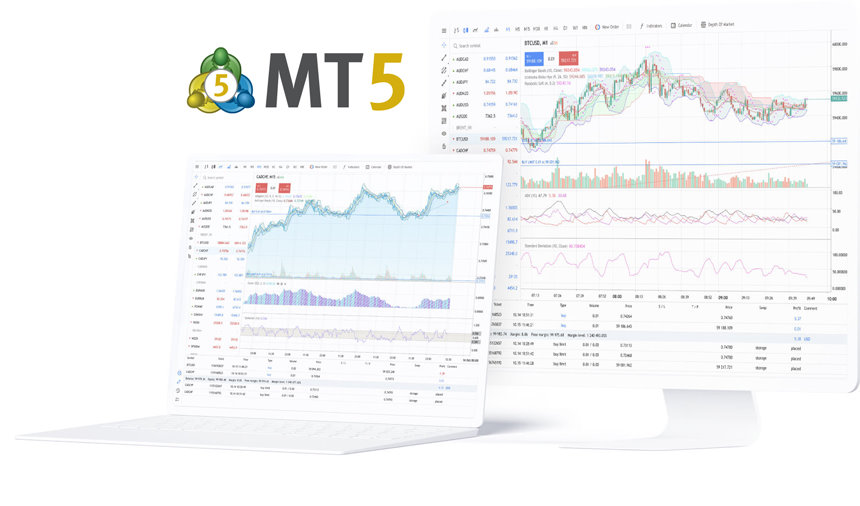
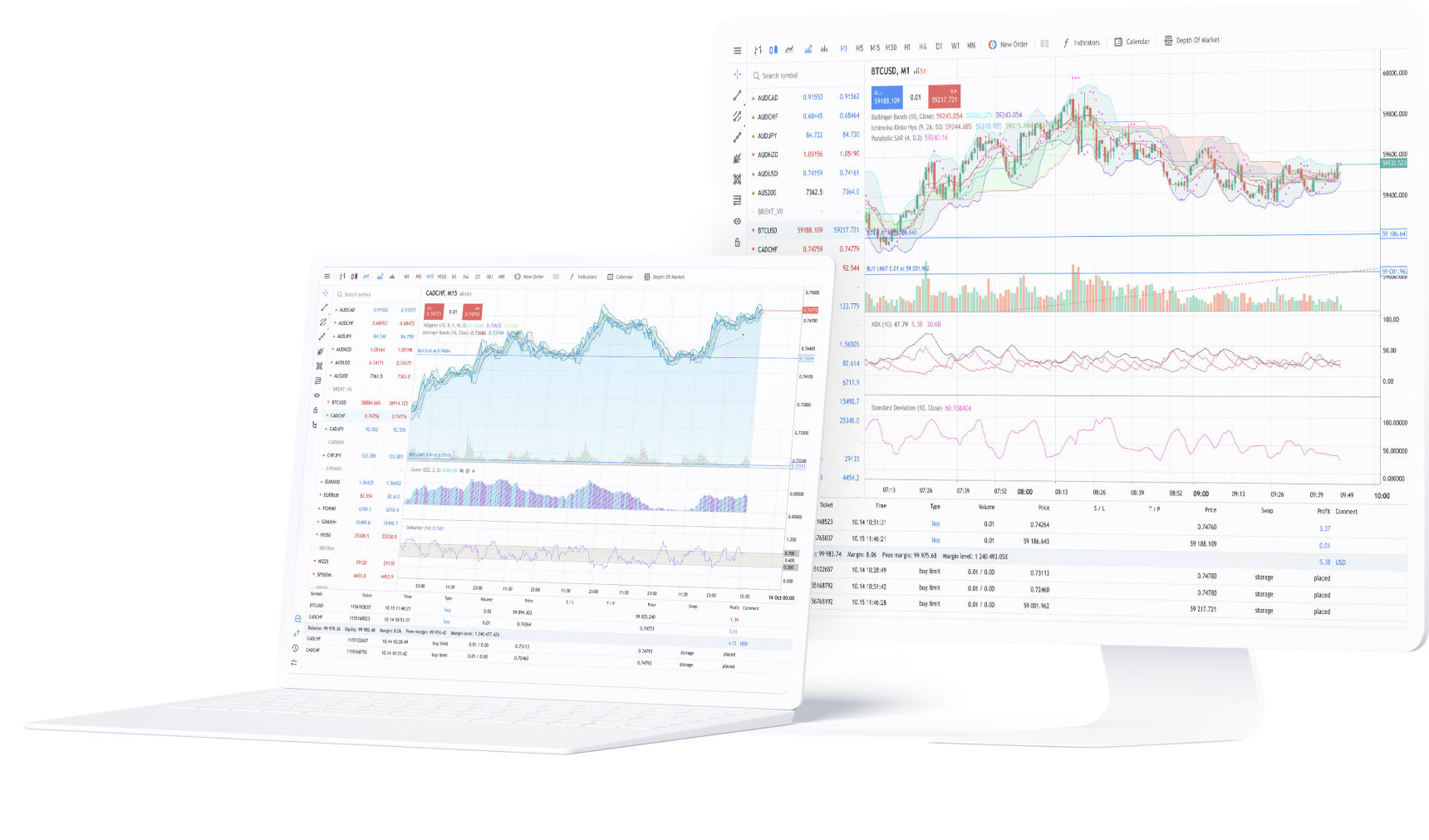
MetaTrader 5 desktop trading terminal

The desktop terminal is the most complete access format for extended sessions, chart analysis, order handling, account monitoring, strategy testing and Expert Advisor workflows.
It is usually the best starting point when a workflow needs multiple charts, local configuration, strategy testing or automated trading setup.
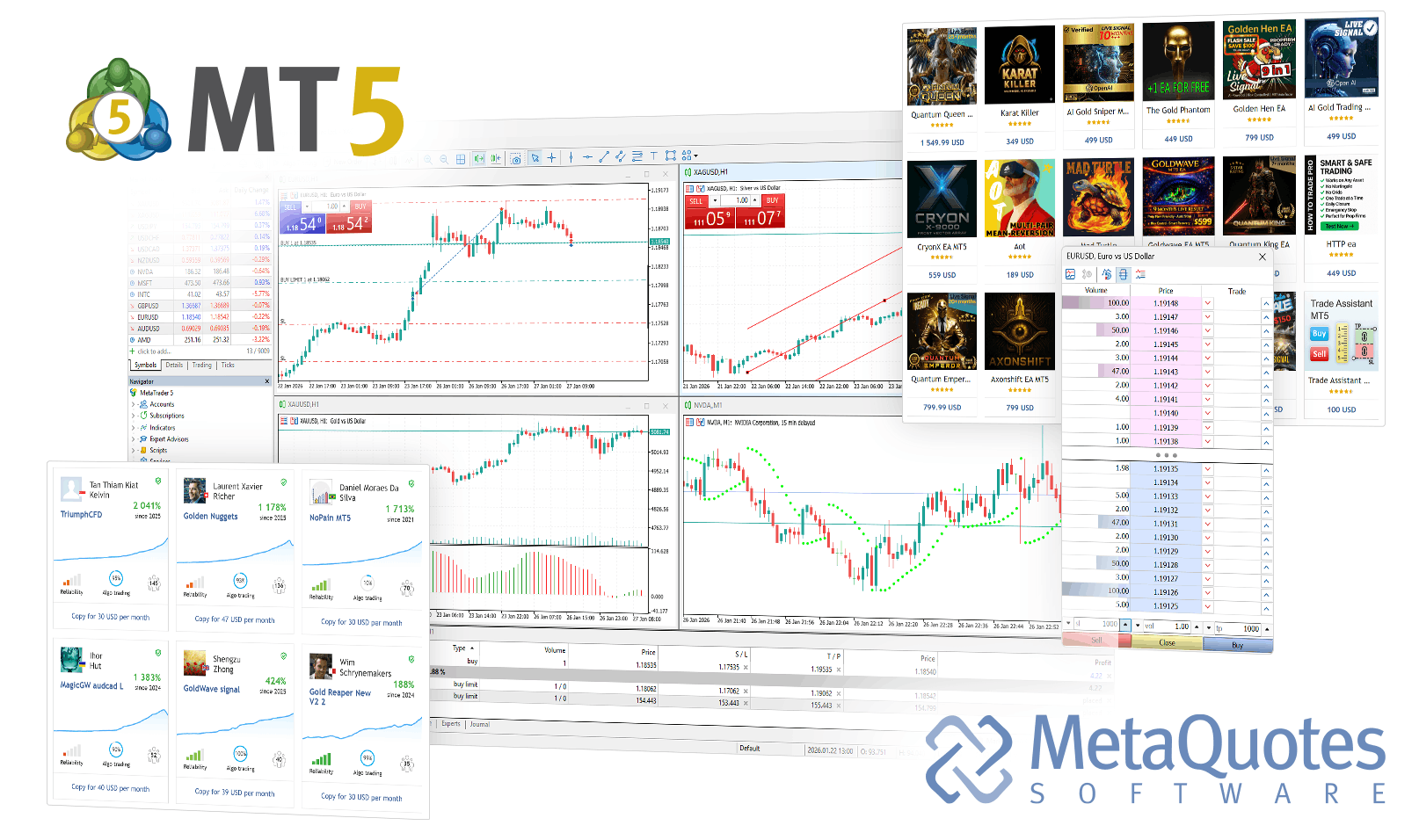
MetaTrader 5 desktop trading terminal desktop showcase

Desktop terminal use cases

Desktop is the best fit for longer sessions, multi-chart work, order handling, account monitoring, strategy testing and EA-related workflows.

  • Suited to longer trading sessions on local devices
  • Supports chart layouts, technical indicators, order windows and position monitoring
  • Used for strategy testing, optimization and Expert Advisor operation
  • Better matched to multi-window, chart-heavy and account-monitoring workflows
  • Requires local installation, system permissions and a stable network connection
  • Symbols, quotes and permissions still depend on broker login
  • Historical data and chart loading can depend on account state and connection quality
  • Runtime consistency is affected by device status and local network conditions
  • Best matched to users who need full terminal depth and local configuration
  • Less portable than WebTerminal or mobile access

WebTerminal use cases

WebTerminal is suited to browser-based account access when installing desktop software is not practical.

  • No local desktop installer is required on the current device
  • Suited to temporary environments, shorter sessions and light account checks
  • Useful for quote review, account access and basic order handling
  • Not intended to replace desktop workflows such as strategy testing or EA setup

Windows desktop terminal notes

  1. Use the Windows desktop terminal installer link for initial setup.
  2. Let the terminal complete first-start loading and network tasks on a stable connection.
  3. Separate folders may be needed when more than one local terminal instance is used.

macOS desktop terminal notes

  1. Use the macOS desktop terminal package that matches the terminal build provided.
  2. macOS security prompts may require approval before the first start.
  3. Local storage, system permissions and network status can affect startup and caching behavior.

Before signing in to a broker account

The terminal becomes usable for live quotes and trading only after it connects to the broker server attached to your account credentials.

  1. Select the terminal format that fits your device, installation rights and access method.
  2. Install or open the terminal using the matching Windows, macOS, Linux, WebTerminal or mobile entry point.
  3. Use the broker-provided server name, account number and password at login.
  4. Confirm quotes, symbols, account status and trading permissions after the first successful connection.

Mobile trading terminal access

iOS and Android terminals extend MetaTrader 5 account access to phones and tablets.

Mobile is useful for quote checks, alerts, account monitoring and basic order handling when the desktop terminal is not available.

MetaTrader 5 for iPhone and iPad

The iOS terminal provides mobile access for quote review, chart checks, alerts, position monitoring and basic trade handling on Apple devices.
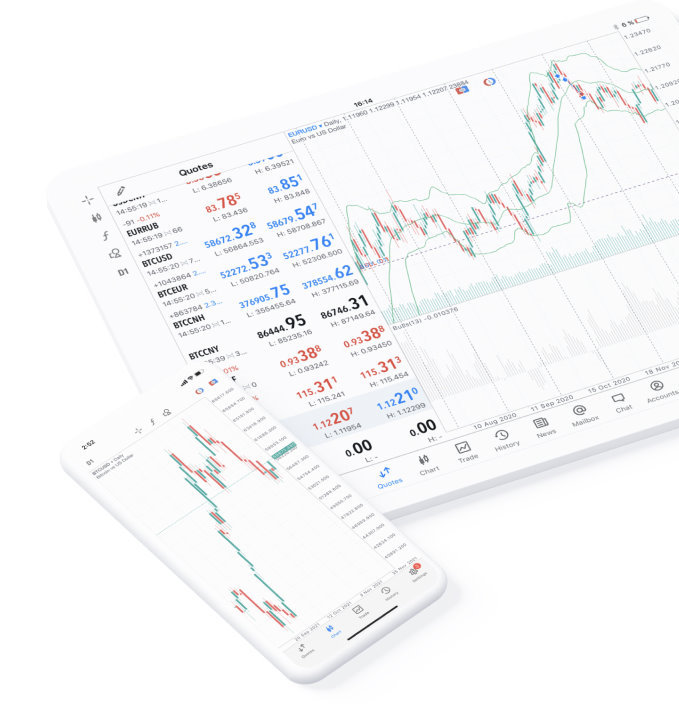
MetaTrader 5 iPhone and iPad mobile terminal

The iOS terminal is intended for market follow-up, chart review, alert handling and account monitoring from mobile devices. Account access, available symbols and trading permissions remain tied to the broker server used at login.

  • Mobile trading terminal access to quotes, charts and positions
  • Better suited to follow-up than full desktop-style analysis sessions
  • Supports broker account login on compatible Apple devices
  • Useful for monitoring, alerts and timely account response
  • Terminal depth on mobile differs from desktop workflows
  • Connection quality affects synchronization, order windows and alert timing
  • Quotes, symbols and permissions depend on the logged-in broker account
  • Device notification permissions affect alert delivery

Android

The Android terminal provides mobile access for market follow-up, chart checks, order handling and account monitoring.
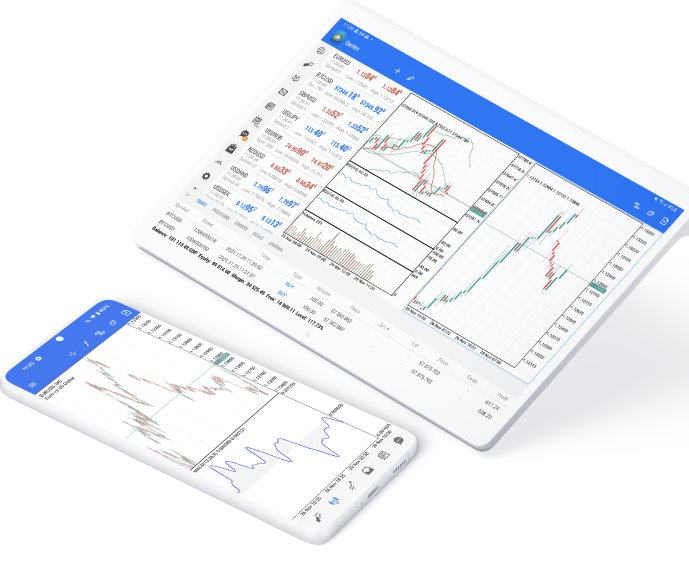
MetaTrader 5 Android mobile terminal

The Android terminal extends MetaTrader 5 account access to phones and tablets for monitoring and order-related actions. Store-based distribution is usually simpler, while package installation adds source checks and device permission requirements.

  • Mobile trading terminal access to account status and market follow-up
  • Suited to alerts, quick account checks and position handling
  • Works as a complementary terminal rather than a full desktop replacement
  • Store-based installation is generally the simpler path
  • Package installation adds source, trust and permission checks
  • Broker login still determines account access and available symbols
  • Device status and network conditions affect runtime consistency
  • Useful when mobility matters more than full workflow depth

Installation source and access notes

Installer source, device permissions, network quality and first-login conditions all affect whether terminal access starts smoothly.

  • Use release sources, setup instructions or store distribution when available for the selected device.
  • Review device-level permissions and security prompts before the first start on desktop or mobile.
  • Use a stable and trusted network for initial login, quote loading and first data synchronization.

MetaTrader 5 WebTerminal

Launch the MetaTrader 5 WebTerminal platform instantly and start trading right away.

No local desktop installer is required for WebTerminal access.

WebTerminal can be used from many browsers and operating systems for account access, quotes and basic order handling. Live quotes and trading permissions still depend on the broker account used at login.

MetaTrader 5 download questions

Direct answers to real download, installation, WebTerminal, mobile app and first-login questions.
Which MetaTrader 5 version should I download?
Download the Windows or macOS desktop terminal if you need full chart analysis, order execution, strategy testing or Expert Advisor setup. Use WebTerminal if you need browser access without installing software. Use iOS or Android if you mainly need mobile quotes, alerts, account checks and basic order handling.
Is MetaTrader 5 available for Windows?
Yes. The Windows version is the main desktop terminal path and is usually the best choice for longer sessions, multiple charts, technical indicators, order windows, strategy testing and EA-related workflows.
Can I download MetaTrader 5 for Mac?
Yes. The macOS package is intended for Mac users who need desktop access to charts, account monitoring and order handling. First launch may require standard macOS security approval, depending on local system settings.
How do I install MetaTrader 5 on Linux?
Linux usually requires setup instructions rather than a single universal installer, because distributions, dependencies and permissions differ. Use the Linux guide, then follow the steps that match your system environment.
Do I need to download anything to use MetaTrader 5 WebTerminal?
No. WebTerminal runs in a browser and does not require a local desktop installer. It is useful for quick account access, quote checks and basic order handling, but it does not replace every desktop workflow such as strategy testing or EA setup.
Where can I download the MetaTrader 5 mobile app?
Use the iOS or Android entry point for mobile access. Mobile terminals are designed for quotes, charts, alerts, account monitoring and basic order handling. Available symbols and trading permissions still depend on the broker account used at login.
Can I trade immediately after downloading MetaTrader 5?
No. Downloading or opening MetaTrader 5 only gives you the terminal. Live quotes and order execution require a broker account, the correct server name, valid login credentials and a successful connection.
What login details do I need after installation?
You need the broker-provided server name, account number and password. These details normally come from the broker or account service provider, not from the terminal download page itself.
Why are quotes or symbols missing after I log in?
Quotes or symbols may be missing because the wrong broker server was selected, the account has limited permissions, the symbol is hidden from the watchlist, or the account is not fully connected. This is usually an account or server issue, not a download issue.
What should I do if the installer is blocked or flagged?
First confirm the download source, file name and operating system prompt. Browser or system warnings can appear for executable files. Do not continue on an untrusted device or network, and follow your device security policy before running any installer.